> ## Documentation Index
> Fetch the complete documentation index at: https://runmaestro-feat-autonomous-manager-agent.mintlify.site/llms.txt
> Use this file to discover all available pages before exploring further.
# Feedback
> Submit bug reports and feature requests through Maestro's conversational feedback system.
Maestro includes a built-in feedback system that uses AI to help you craft well-structured GitHub issues. Instead of filling out a form, you have a short conversation - the AI asks clarifying questions, checks for duplicates, and submits a polished issue on your behalf.
## Prerequisites
* [GitHub CLI](https://cli.github.com/) (`gh`) must be installed
* You must be authenticated (`gh auth login`)
## Sending Feedback
### 1. Open the Feedback Modal
Click the **Feedback** button in the bottom-left corner of the sidebar, next to **New Agent**.
 You can also open it via **Quick Actions** (`Cmd+K` / `Ctrl+K`) → "Send Feedback".
### 2. Choose an AI Agent
Select which installed AI provider will conduct the feedback conversation. Maestro auto-detects available agents (Claude Code, Codex, OpenCode) and pre-selects the first one found.
You can also open it via **Quick Actions** (`Cmd+K` / `Ctrl+K`) → "Send Feedback".
### 2. Choose an AI Agent
Select which installed AI provider will conduct the feedback conversation. Maestro auto-detects available agents (Claude Code, Codex, OpenCode) and pre-selects the first one found.
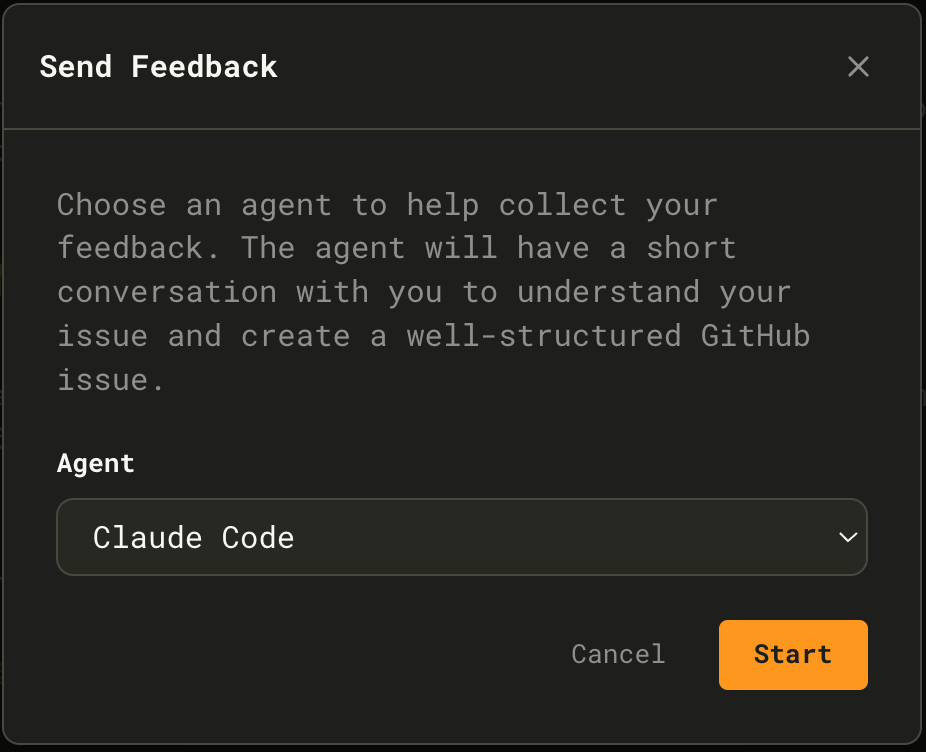 Click **Start** to begin.
### 3. Describe Your Issue
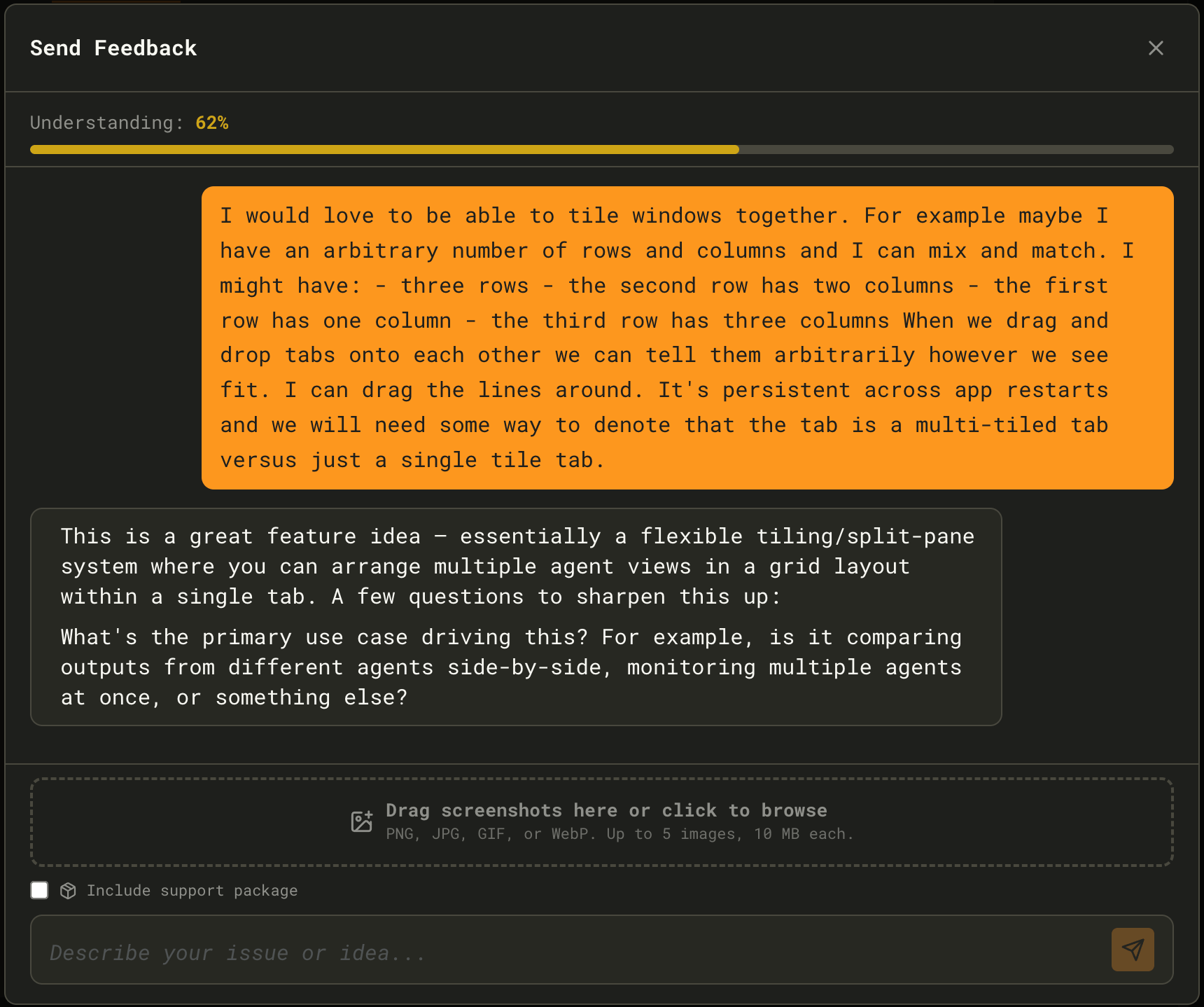
Tell the AI what's on your mind - a bug you hit, a feature you want, or general feedback. The AI classifies your input and asks targeted follow-up questions:
* **Bug reports** - What happened? What was expected? Steps to reproduce?
* **Feature requests** - Use case? Desired outcome? Why it matters?
A confidence bar at the top tracks how well the AI understands your issue. As you answer questions, it fills toward 100%.
Click **Start** to begin.
### 3. Describe Your Issue
Tell the AI what's on your mind - a bug you hit, a feature you want, or general feedback. The AI classifies your input and asks targeted follow-up questions:
* **Bug reports** - What happened? What was expected? Steps to reproduce?
* **Feature requests** - Use case? Desired outcome? Why it matters?
A confidence bar at the top tracks how well the AI understands your issue. As you answer questions, it fills toward 100%.
 **Optional attachments:**
* Drag and drop up to 5 screenshots (PNG, JPG, GIF, or WebP - 10 MB each)
* Check **Include support package** to attach debug information
### 4. Review and Submit
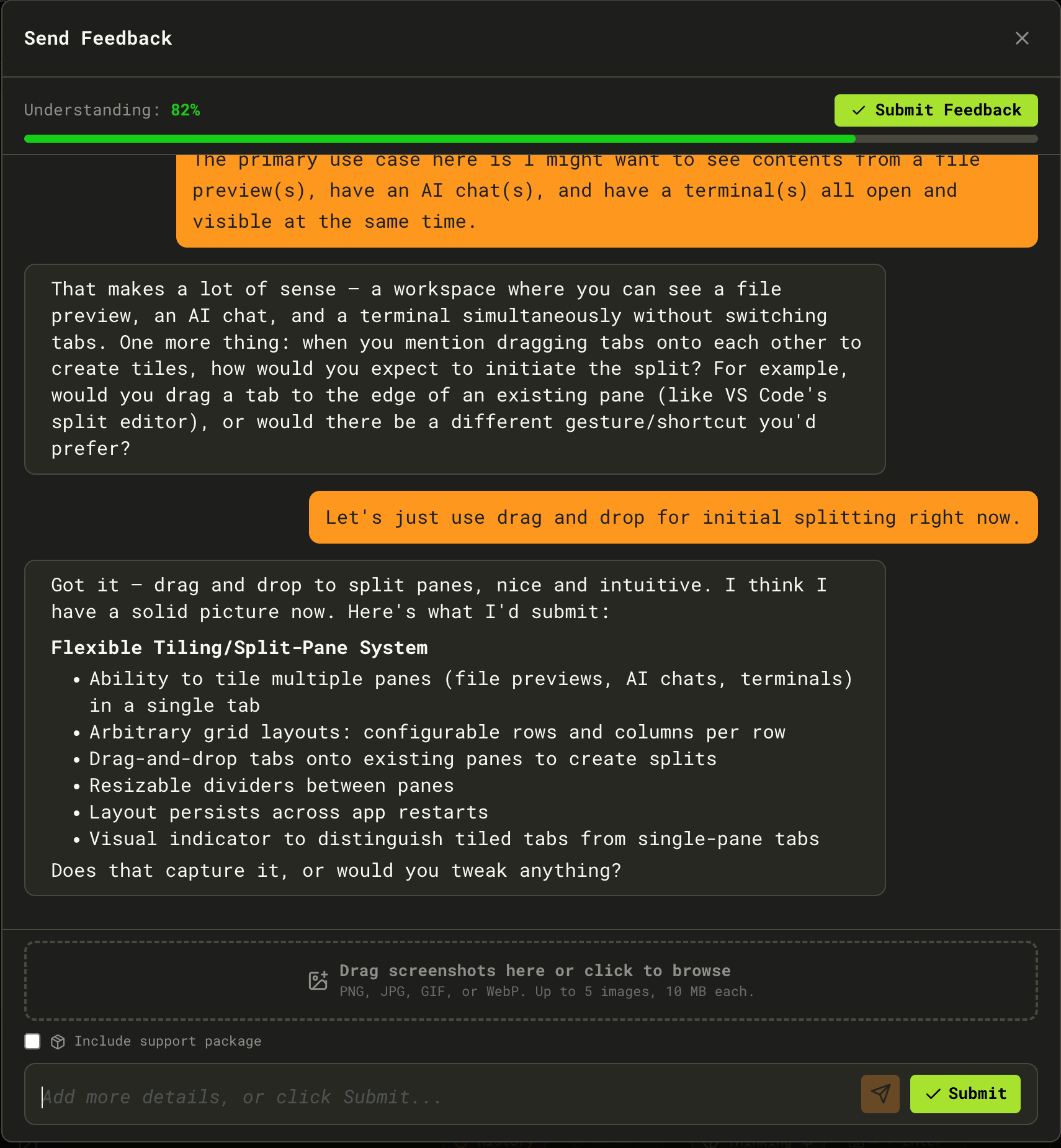
Once understanding reaches **80%**, a green **Submit Feedback** button appears. The AI presents a structured summary of what it will submit. Review the summary, tweak anything by continuing the conversation, then click **Submit**.
**Optional attachments:**
* Drag and drop up to 5 screenshots (PNG, JPG, GIF, or WebP - 10 MB each)
* Check **Include support package** to attach debug information
### 4. Review and Submit
Once understanding reaches **80%**, a green **Submit Feedback** button appears. The AI presents a structured summary of what it will submit. Review the summary, tweak anything by continuing the conversation, then click **Submit**.
 ### Duplicate Detection
As you describe your issue, Maestro searches existing GitHub issues in the background. If similar issues are found, an inline card appears listing them. You can:
* **Subscribe to an existing issue** - Your context is added as a comment with a +1 reaction
* **Create a new issue anyway** - Bypasses the match and files a fresh issue
This prevents duplicate reports while still capturing your unique context.
### After Submission
Once submitted, you'll see a confirmation with:
* A direct link to the new GitHub issue
* A copy-to-clipboard button for the issue URL
* An option to open the issue in your browser
### Duplicate Detection
As you describe your issue, Maestro searches existing GitHub issues in the background. If similar issues are found, an inline card appears listing them. You can:
* **Subscribe to an existing issue** - Your context is added as a comment with a +1 reaction
* **Create a new issue anyway** - Bypasses the match and files a fresh issue
This prevents duplicate reports while still capturing your unique context.
### After Submission
Once submitted, you'll see a confirmation with:
* A direct link to the new GitHub issue
* A copy-to-clipboard button for the issue URL
* An option to open the issue in your browser