> ## Documentation Index
> Fetch the complete documentation index at: https://runmaestro-feat-autonomous-manager-agent.mintlify.site/llms.txt
> Use this file to discover all available pages before exploring further.
# Director's Notes
> Aggregate history from all agents into a unified timeline with AI-powered synopsis generation.
Director's Notes is your bird's-eye view of everything happening across all your AI agents. Instead of switching between tabs to check what each agent has been doing, Director's Notes aggregates all history entries into a single, searchable, filterable timeline - and can generate an AI-powered synopsis of recent activity.
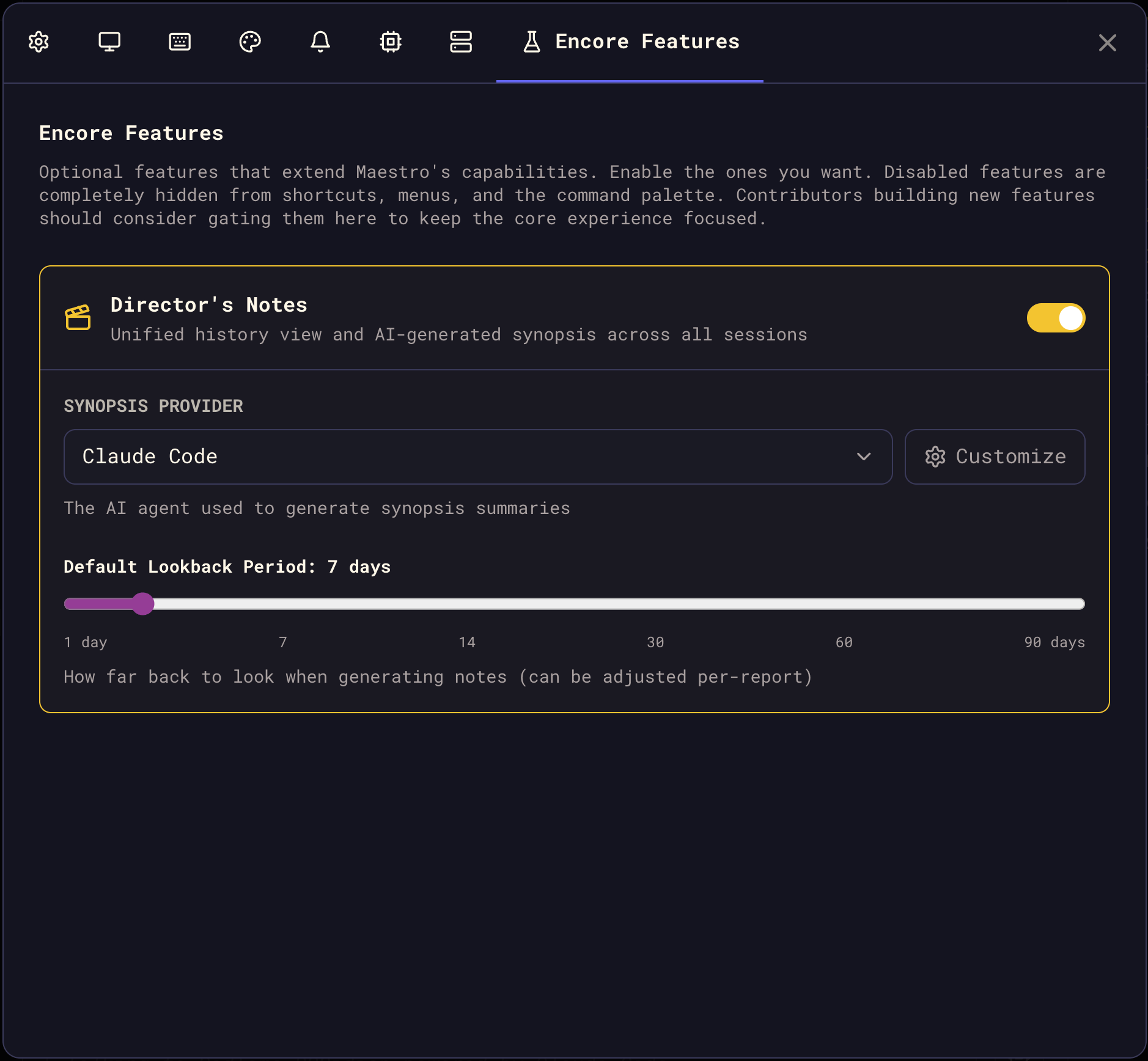
Director's Notes is an **Encore Feature** - it's disabled by default. Enable it in **Settings > Encore Features** to access the shortcut, menu entry, and command palette action.
 ## Opening Director's Notes
**Keyboard shortcut:**
* macOS: `Cmd+Shift+O`
* Windows/Linux: `Ctrl+Shift+O`
**From Quick Actions:**
* Press `Cmd+K` / `Ctrl+K` and search for "Director's Notes"
## Tabs
Director's Notes has three tabs:
### Unified History
The primary view - a chronological list of all history entries from every agent, newest first.
## Opening Director's Notes
**Keyboard shortcut:**
* macOS: `Cmd+Shift+O`
* Windows/Linux: `Ctrl+Shift+O`
**From Quick Actions:**
* Press `Cmd+K` / `Ctrl+K` and search for "Director's Notes"
## Tabs
Director's Notes has three tabs:
### Unified History
The primary view - a chronological list of all history entries from every agent, newest first.
 **Filtering:**
* **AUTO / USER** toggle buttons filter by entry type
* **Search** (`Cmd+F` / `Ctrl+F`) filters by summary text or agent name
* **Activity Graph** shows entry distribution over time; right-click to change the lookback window (24 hours through all time)
**Stats Bar:**
A centered aggregate stats bar displays key metrics across the current dataset:
* Total queries, sessions, AUTO entries, USER entries, and total cost
**Entry Details:**
Each entry shows:
* **Agent name** - which Maestro agent produced the entry
* **Task name pill** - clickable link to the originating session
* **Type badge** (AUTO or USER)
* **Summary** of what was accomplished
* **Duration** and **cost** (when available)
* **Timestamp**
Click any entry to open the **Detail Modal** with full response text, token breakdown, and navigation controls (Prev/Next or arrow keys).
**Session Navigation:**
Click the session pill on any entry to jump directly to that agent's tab - Director's Notes closes and focuses the agent with the relevant session loaded.
**Infinite Scroll:**
Entries load progressively (100 at a time). Scroll to load more as needed.
### AI Overview
An AI-generated synopsis of recent activity across all agents. This tab uses a configurable AI provider to read history files and produce a structured report.
**Filtering:**
* **AUTO / USER** toggle buttons filter by entry type
* **Search** (`Cmd+F` / `Ctrl+F`) filters by summary text or agent name
* **Activity Graph** shows entry distribution over time; right-click to change the lookback window (24 hours through all time)
**Stats Bar:**
A centered aggregate stats bar displays key metrics across the current dataset:
* Total queries, sessions, AUTO entries, USER entries, and total cost
**Entry Details:**
Each entry shows:
* **Agent name** - which Maestro agent produced the entry
* **Task name pill** - clickable link to the originating session
* **Type badge** (AUTO or USER)
* **Summary** of what was accomplished
* **Duration** and **cost** (when available)
* **Timestamp**
Click any entry to open the **Detail Modal** with full response text, token breakdown, and navigation controls (Prev/Next or arrow keys).
**Session Navigation:**
Click the session pill on any entry to jump directly to that agent's tab - Director's Notes closes and focuses the agent with the relevant session loaded.
**Infinite Scroll:**
Entries load progressively (100 at a time). Scroll to load more as needed.
### AI Overview
An AI-generated synopsis of recent activity across all agents. This tab uses a configurable AI provider to read history files and produce a structured report.
 **Controls:**
* **Lookback slider** - Adjust from 1 to 90 days to control the analysis window
* **Refresh** - Regenerate the synopsis with current settings
* **Save** - Export the synopsis as a markdown file
* **Copy** - Copy the raw markdown to clipboard
**Stats Bar:**
After generation, a stats bar shows:
* Number of history entries analyzed
* Number of agents with activity
* Generation time
**Synopsis Content:**
The AI produces a structured report organized by agent/project with sections for:
* **Accomplishments** - What was completed
* **Challenges** - Issues encountered or unresolved
* **Next Steps** - Recommended follow-up actions
The synopsis is rendered as rich markdown with full formatting support.
**Provider Configuration:**
Configure which AI provider generates the synopsis in **Settings > Encore Features**. Any installed agent (Claude Code, Codex, OpenCode) can be used. The default lookback window is also configurable there.
The AI Overview tab becomes available once the synopsis has finished generating. A spinning indicator on the tab shows generation is in progress. Results are cached for the session - switching tabs won't trigger a regeneration.
### Help
A built-in reference guide explaining all Director's Notes features, entry types, keyboard shortcuts, and workflows.
## Keyboard Shortcuts
### Modal
| Shortcut | Action |
| ------------------------------ | ------------------------------------- |
| `Cmd+Shift+O` / `Ctrl+Shift+O` | Open Director's Notes |
| `Cmd+Shift+[` / `Ctrl+Shift+[` | Previous tab |
| `Cmd+Shift+]` / `Ctrl+Shift+]` | Next tab |
| `Esc` | Close modal (or close search if open) |
### Unified History
| Shortcut | Action |
| ------------------ | ----------------------------------- |
| `Cmd+F` / `Ctrl+F` | Open search filter |
| `Up` / `Down` | Navigate between entries |
| `Enter` | Open detail view for selected entry |
| `Esc` | Close search or close detail view |
### Detail View
| Shortcut | Action |
| ---------------- | ------------------------------- |
| `Left` / `Right` | Navigate to previous/next entry |
| `Esc` | Close detail view |
## Settings
Access Director's Notes settings via **Settings > Encore Features** (enable Director's Notes first):
| Setting | Description |
| -------------------- | ---------------------------------------------------------- |
| **AI Provider** | Which agent generates the AI Overview synopsis |
| **Default Lookback** | Default number of days for the AI Overview lookback slider |
| **Custom Path** | Optional custom binary path for the synopsis provider |
| **Custom Args** | Optional custom arguments for the synopsis provider |
## Tips
* **Use AI Overview after an Auto Run session** to get a quick summary of everything that was accomplished across all agents
* **Search by agent name** in Unified History to isolate work from a specific project
* **Right-click the activity graph** to quickly change the time window without scrolling
* **Save or copy the synopsis** to include in standup notes, PRs, or project documentation
* **Session navigation** lets you jump directly from a history entry to the agent that produced it - great for resuming or reviewing work
## Pulling Notes from the CLI
The same unified history and AI synopsis are available from [`maestro-cli`](./cli#directors-notes), so you can pipe Director's Notes into shell scripts, cron jobs, or your own reporting tools without opening the app.
```bash theme={null}
# Plain-text recap of the last 3 days
maestro-cli director-notes history -d 3
# Markdown recap of the last day, ready to paste into a doc or PR
maestro-cli director-notes history -f markdown -d 1
# Only the work you initiated (skip AUTO entries from Auto Run)
maestro-cli director-notes history --filter user -l 50
# JSON for piping into jq, a dashboard, or your own tooling
maestro-cli director-notes history --json -d 7
# AI synopsis of the past day (requires the desktop app to be running)
maestro-cli director-notes synopsis -d 1
```
### Generating a weekly report
Combine `synopsis` with a redirect (or your favorite scheduler) to produce a self-serve weekly report:
```bash theme={null}
# Write this week's synopsis to a dated markdown file
maestro-cli director-notes synopsis -d 7 -f markdown \
> ~/Documents/maestro-weekly-$(date +%Y-%m-%d).md
```
Schedule it with `cron`, `launchd`, or [Maestro Cue](./maestro-cue) on a weekly interval to wake up to a fresh status report every Monday. Pair it with `maestro-cli notify toast --open-file ` if you want a clickable in-app reminder when the report lands.
`history` reads directly from disk and works offline. `synopsis` needs the Maestro desktop app running because it dispatches the prompt through your configured AI provider.
**Controls:**
* **Lookback slider** - Adjust from 1 to 90 days to control the analysis window
* **Refresh** - Regenerate the synopsis with current settings
* **Save** - Export the synopsis as a markdown file
* **Copy** - Copy the raw markdown to clipboard
**Stats Bar:**
After generation, a stats bar shows:
* Number of history entries analyzed
* Number of agents with activity
* Generation time
**Synopsis Content:**
The AI produces a structured report organized by agent/project with sections for:
* **Accomplishments** - What was completed
* **Challenges** - Issues encountered or unresolved
* **Next Steps** - Recommended follow-up actions
The synopsis is rendered as rich markdown with full formatting support.
**Provider Configuration:**
Configure which AI provider generates the synopsis in **Settings > Encore Features**. Any installed agent (Claude Code, Codex, OpenCode) can be used. The default lookback window is also configurable there.
The AI Overview tab becomes available once the synopsis has finished generating. A spinning indicator on the tab shows generation is in progress. Results are cached for the session - switching tabs won't trigger a regeneration.
### Help
A built-in reference guide explaining all Director's Notes features, entry types, keyboard shortcuts, and workflows.
## Keyboard Shortcuts
### Modal
| Shortcut | Action |
| ------------------------------ | ------------------------------------- |
| `Cmd+Shift+O` / `Ctrl+Shift+O` | Open Director's Notes |
| `Cmd+Shift+[` / `Ctrl+Shift+[` | Previous tab |
| `Cmd+Shift+]` / `Ctrl+Shift+]` | Next tab |
| `Esc` | Close modal (or close search if open) |
### Unified History
| Shortcut | Action |
| ------------------ | ----------------------------------- |
| `Cmd+F` / `Ctrl+F` | Open search filter |
| `Up` / `Down` | Navigate between entries |
| `Enter` | Open detail view for selected entry |
| `Esc` | Close search or close detail view |
### Detail View
| Shortcut | Action |
| ---------------- | ------------------------------- |
| `Left` / `Right` | Navigate to previous/next entry |
| `Esc` | Close detail view |
## Settings
Access Director's Notes settings via **Settings > Encore Features** (enable Director's Notes first):
| Setting | Description |
| -------------------- | ---------------------------------------------------------- |
| **AI Provider** | Which agent generates the AI Overview synopsis |
| **Default Lookback** | Default number of days for the AI Overview lookback slider |
| **Custom Path** | Optional custom binary path for the synopsis provider |
| **Custom Args** | Optional custom arguments for the synopsis provider |
## Tips
* **Use AI Overview after an Auto Run session** to get a quick summary of everything that was accomplished across all agents
* **Search by agent name** in Unified History to isolate work from a specific project
* **Right-click the activity graph** to quickly change the time window without scrolling
* **Save or copy the synopsis** to include in standup notes, PRs, or project documentation
* **Session navigation** lets you jump directly from a history entry to the agent that produced it - great for resuming or reviewing work
## Pulling Notes from the CLI
The same unified history and AI synopsis are available from [`maestro-cli`](./cli#directors-notes), so you can pipe Director's Notes into shell scripts, cron jobs, or your own reporting tools without opening the app.
```bash theme={null}
# Plain-text recap of the last 3 days
maestro-cli director-notes history -d 3
# Markdown recap of the last day, ready to paste into a doc or PR
maestro-cli director-notes history -f markdown -d 1
# Only the work you initiated (skip AUTO entries from Auto Run)
maestro-cli director-notes history --filter user -l 50
# JSON for piping into jq, a dashboard, or your own tooling
maestro-cli director-notes history --json -d 7
# AI synopsis of the past day (requires the desktop app to be running)
maestro-cli director-notes synopsis -d 1
```
### Generating a weekly report
Combine `synopsis` with a redirect (or your favorite scheduler) to produce a self-serve weekly report:
```bash theme={null}
# Write this week's synopsis to a dated markdown file
maestro-cli director-notes synopsis -d 7 -f markdown \
> ~/Documents/maestro-weekly-$(date +%Y-%m-%d).md
```
Schedule it with `cron`, `launchd`, or [Maestro Cue](./maestro-cue) on a weekly interval to wake up to a fresh status report every Monday. Pair it with `maestro-cli notify toast --open-file ` if you want a clickable in-app reminder when the report lands.
`history` reads directly from disk and works offline. `synopsis` needs the Maestro desktop app running because it dispatches the prompt through your configured AI provider.